

Now Reading: Google Finally Brings Desktop Mode to Pixel Phones: Here Is What It Does and Whether It Actually Works
-
01
Google Finally Brings Desktop Mode to Pixel Phones: Here Is What It Does and Whether It Actually Works
Google Finally Brings Desktop Mode to Pixel Phones: Here Is What It Does and Whether It Actually Works

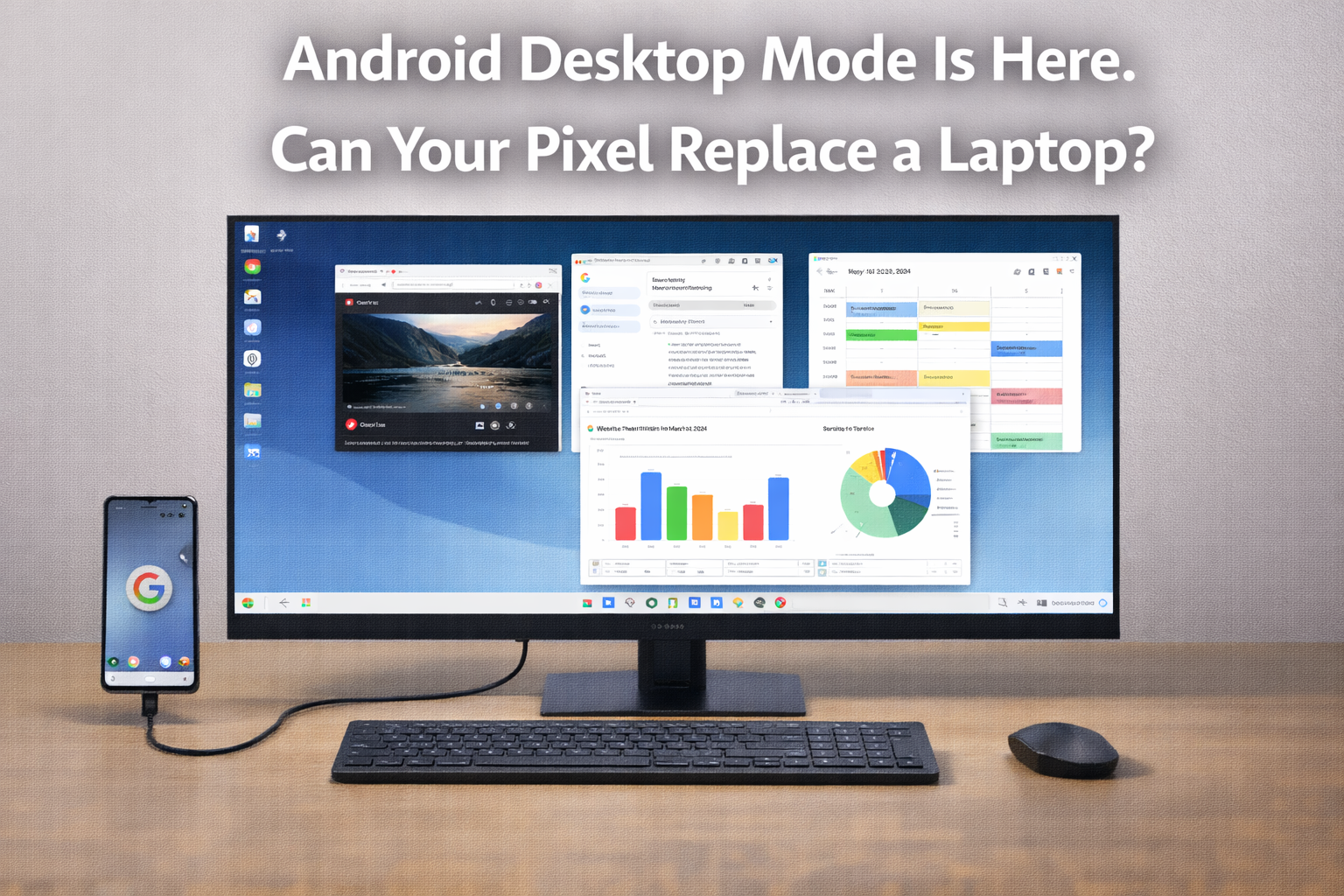
The idea of using your smartphone as a desktop computer when connected to a monitor has been a recurring promise in mobile technology for over a decade. Samsung DeX turned that promise into a real product for Galaxy users. Motorola had its lapdock concept. Microsoft briefly tried Continuum for Windows Phone. Each attempt found real use cases and real limitations.
Thank you for reading this post, don't forget to subscribe!Google has now brought a native desktop mode to Pixel devices through a software update, enabling windowed Android apps, a persistent taskbar, and pointer support that transforms the Pixel experience on an external display into something meaningfully closer to a traditional desktop computing environment. Whether it is good enough to matter, and for whom, requires understanding both what it does well and where it currently falls short.
What Android Desktop Mode on Pixel Does
Windowed Multitasking
The centerpiece of desktop mode is windowed app operation: Android applications run in resizable windows on the external display, allowing multiple apps to be visible and operational simultaneously. This is a fundamental departure from the full-screen, swipe-between-apps model that defines smartphone interaction, and it is the capability that makes desktop mode feel like a different computing experience rather than just a bigger phone screen.
Window management is handled through a taskbar that appears at the bottom of the display, offering an app launcher, a dock of frequently used apps, and a system tray with notifications and quick settings. The interaction model will be immediately familiar to anyone who has used a Windows or Chrome OS desktop, which is deliberate: Google has designed the desktop mode interface to meet user expectations shaped by decades of desktop computing experience.
Mouse and Keyboard Support
Desktop mode is designed for use with a Bluetooth or USB-connected keyboard and mouse, and the input handling in this configuration is genuinely good. Text cursor behavior in apps, right-click context menus, scroll wheel behavior, and keyboard shortcut support all work as expected in Google’s own apps and in apps built by developers who have opted into the desktop mode optimizations.
The quality of the experience varies significantly by application. Apps built with Material You design guidelines and tested for large-screen layouts work well. Apps that have not been optimized for keyboard and mouse interaction, or that assume touch as the primary input modality, feel awkward in ways that reduce the desktop computing illusion.
The App Optimization Gap: The weakest point in Android desktop mode is the same gap that has limited every desktop-from-phone attempt: many popular apps simply were not designed to be used with a keyboard and mouse in a windowed environment. Until the app ecosystem catches up with the hardware capability, some of the most frequently used applications will feel out of place in desktop mode.
File Management and Productivity Integration
Google has updated the Files app on Pixel to behave more like a traditional file manager in desktop mode, with a two-panel view showing folders on the left and contents on the right, drag-and-drop between windows, and more explicit file path navigation. For productivity users who need to manage documents across Google Drive, local storage, and connected devices, this improvement represents a meaningful increase in the desktop experience quality.
Google Docs, Sheets, Slides, and Gmail all work well in desktop mode, which is unsurprising given Google’s control over these apps and their existing web-based desktop interfaces. The quality of the Google Workspace experience in Pixel desktop mode is comparable to using these apps in a Chrome browser on a Chromebook.
How It Compares to Samsung DeX
Samsung DeX has a significant maturity advantage over Google’s Pixel desktop mode. DeX has been available since 2017 and has gone through seven years of iteration, user feedback, and app ecosystem development. The windowing behavior is more polished, the app compatibility is broader because developers have had years to optimize for DeX, and Samsung’s enterprise partnerships have produced DeX-specific integrations with productivity tools.
Google’s desktop mode has the advantage of being part of the core Android platform rather than a Samsung-specific layer, which means any app targeting the latest Android releases will benefit from desktop mode improvements automatically. Over time, this platform-level integration should produce better app compatibility than DeX’s developer-opt-in model. In the current moment, DeX is the more complete experience for users who need desktop mode for professional productivity today.
Who Should Use Android Desktop Mode Right Now
- Pixel users who travel frequently and want to reduce the number of devices they carry: a Pixel plus a portable monitor, keyboard, and mouse is a viable light-productivity setup for many knowledge workers
- Students who need a desktop computing capability but cannot afford a separate laptop: Pixel desktop mode on a university lab monitor provides a usable productivity environment
- Professionals already using Pixel who want to enable desktop work at a hotel or client site without carrying a laptop: the mode is good enough for this use case today
- Developers who want to test how their apps behave in desktop contexts: desktop mode is the best available tool for this
What Needs to Improve
Several limitations in the current implementation reduce its appeal for full-time desktop replacement use. External display resolution handling is inconsistent across monitor types. Window snap behavior is less reliable than desktop OS equivalents. The transition between phone and desktop mode when connecting and disconnecting a monitor requires user attention rather than happening invisibly. And performance under a multi-window workload reveals that the Pixel’s thermal management, designed for mobile use patterns, occasionally throttles in ways that affect responsiveness.
Bottom Line: Google Android desktop mode on Pixel is a genuine and usable first step toward phone-as-desktop computing. It is not yet competitive with a Chromebook for productivity-focused users, and Samsung DeX remains the more mature implementation. But for Pixel users who want a desktop overflow capability for specific use cases, it works well enough to be worth trying right now. This is a feature that will improve significantly with each Android release.
Related: Google Gemini Canvas AI Mode | Google Pixel 10 Gemini Groceries | MacBook Neo $599 Review
Related Posts

Stay Informed With the Latest & Most Important News


Top News
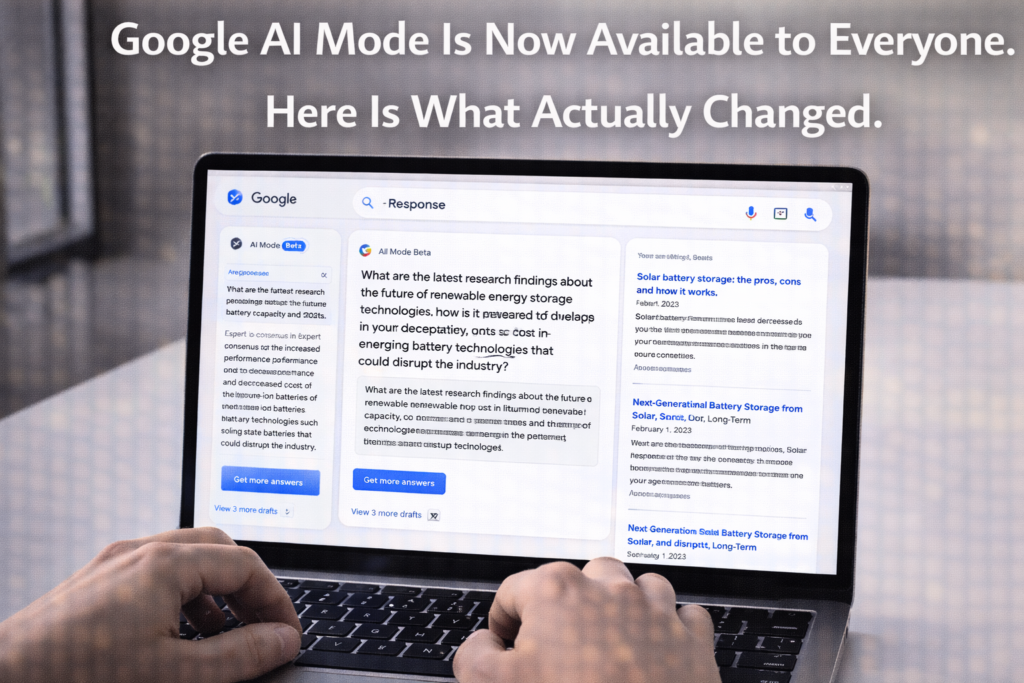
- Google’s AI-Powered Workspace in Search Is Now Available to All US Users: Here Is What Actually Changed
- How Jeffrey Epstein Used Silicon Valley’s Network: What the Reporting on Reid Hoffman and Tech’s Elite Reveals

- Where to Preorder the iPhone 17E Right Now: Every Deal Ranked Before the March 11 Launch
- Google Apps Experience and Games Level Up: The Programs That Could Cut Your Play Store Commission Significantly

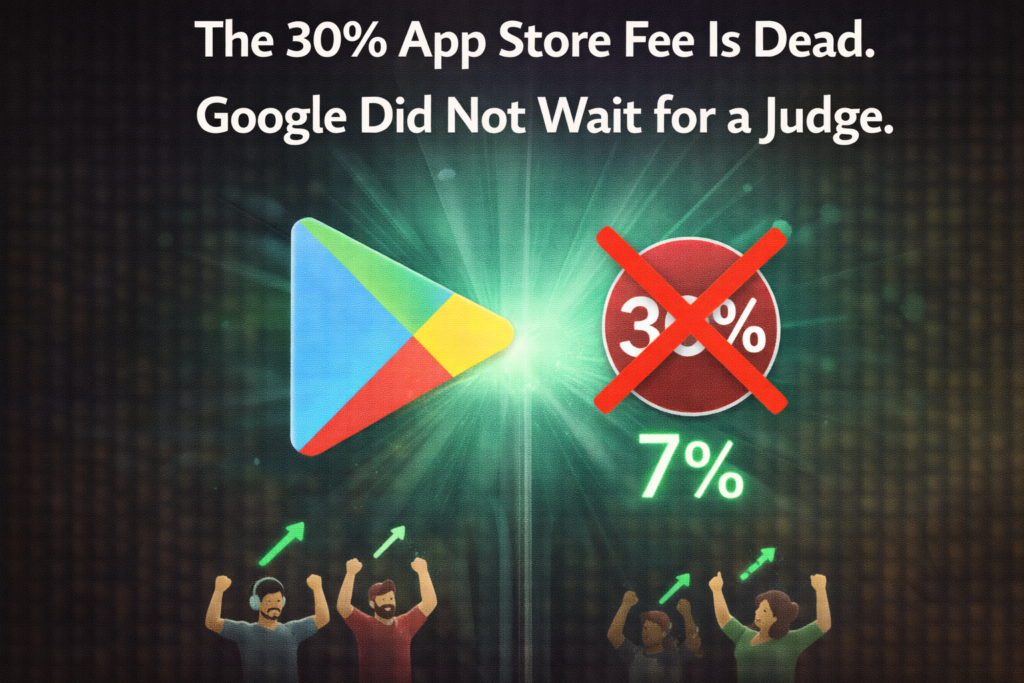
- Google Is Not Waiting for a Settlement: It Just Killed the 30 Percent App Store Fee Unilaterally










Advertisement